

- Customers: connect to the 10.0.0.1 Piso WiFi network and open
http://10.0.0.1(use http, not https) to insert coins, pause or resume your time. - Owners: open
http://10.0.0.1/adminand log in. Common factory defaults areadmin/adminoradmin/password, but your installer may have changed them. See the full login steps. - Page will not open: turn off mobile data, VPN and Private DNS, use http, and check you typed 10.0.0.1, not 10.0.0.0.1. See the quick fixes.
Typing 10.0.0.1 piso wifi into Google usually means one of two things. You are a customer who wants your internet time back, or you are an owner who needs the admin dashboard. The address 10.0.0.1 is a private IPv4 gateway used by Piso WiFi vending systems such as Adopisoft and LPB for their captive portal and admin panel. This guide covers the login steps, default credentials, pause time, common errors, and key settings. One quick note: the correct address is 10.0.0.1, not 10.0.0.0.1. The extra zero stops the page from loading.
What is 10.0.0.1 Piso WiFi and How Does It Work?
Every 10.0.0.1 Piso WiFi setup relies on a private IPv4 address that acts as the default gateway for the vending controller. Xfinity and Comcast gateways also use it, so the address alone does not prove you are connected to a Piso WiFi machine.
Private IP and Default Gateway Explained
A default gateway is the device that connects your phone or laptop to the wider internet. Because 10.0.0.1 sits inside the private 10.0.0.0/8 range, it responds only on your local network. You cannot reach it from the open internet, which is a security advantage for owners.
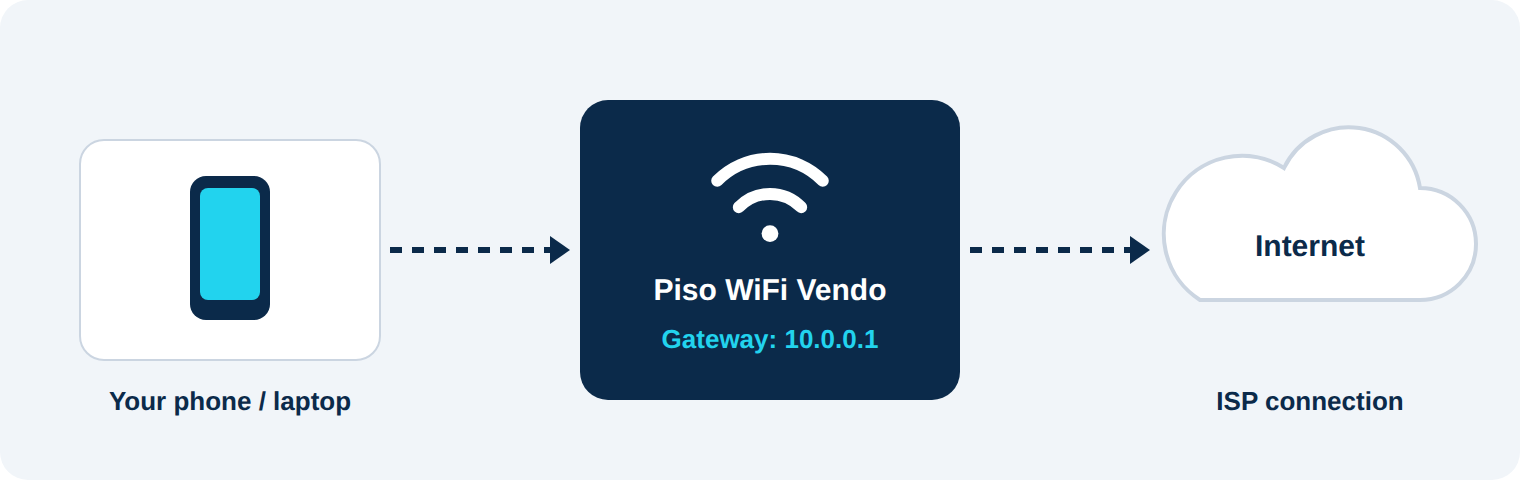
Piso WiFi systems use this address in two ways. It opens the captive portal, the page that asks customers to insert a coin. It also opens the admin dashboard where the owner manages rates, vouchers, and connected devices.
10.0.0.0.1 vs 10.0.0.1: A Common Typo
Many people search for 10.0.0.0.1, but that is not a valid IPv4 address. IPv4 uses exactly four numbers separated by dots, each from 0 to 255. If the page will not open, check that you typed 10.0.0.1 with no extra digits, no spaces, and no trailing symbols.
How Piso WiFi Works (Coin to Internet Time)
Piso WiFi is a coin-operated internet vending service common in the Philippines. The name comes from the peso, because a single ₱1 coin buys a short block of connection time. Shops, sari-sari stores, and boarding houses use it to sell WiFi without monthly contracts.
Connect, Open the Portal, Insert Coin, Browse
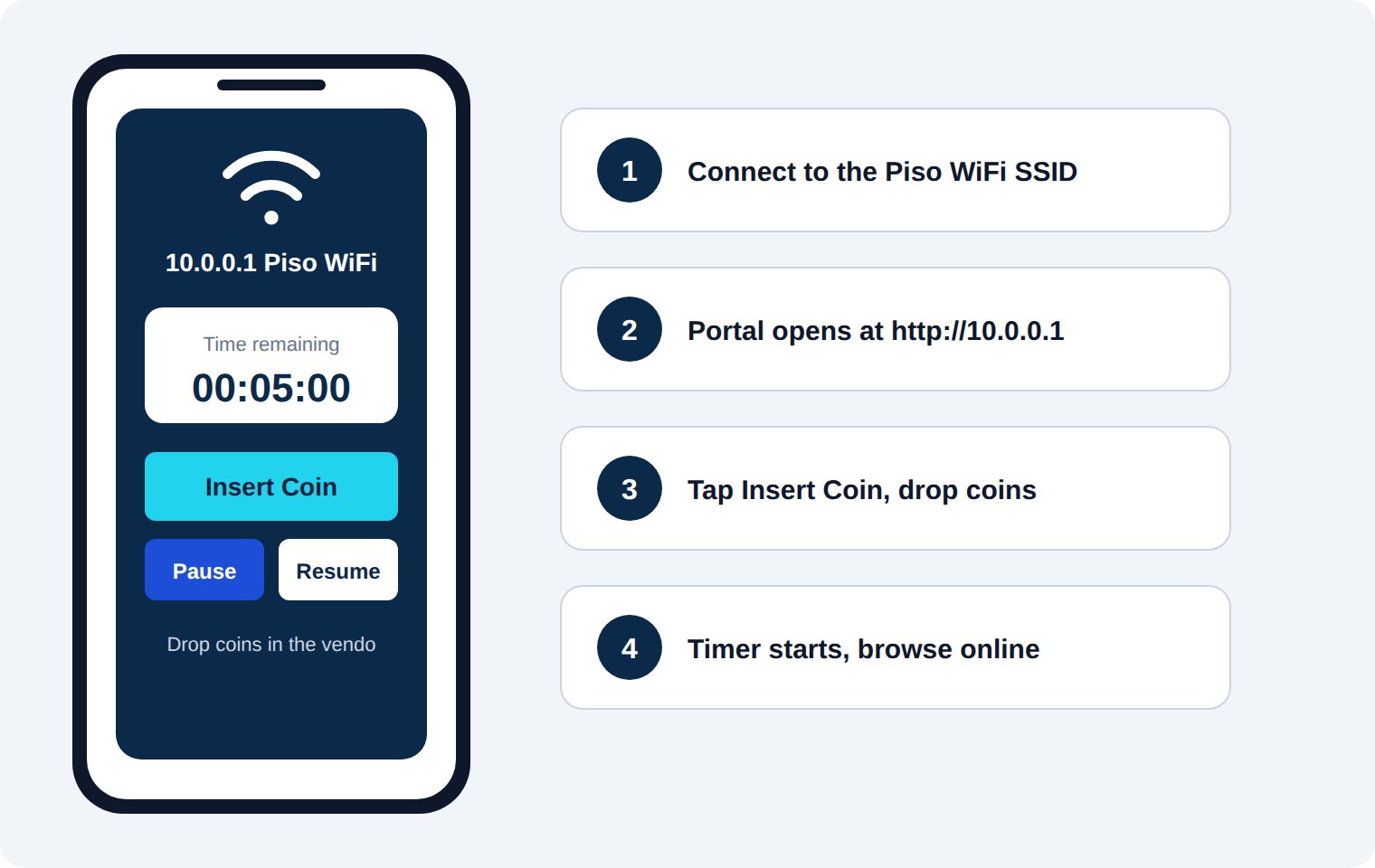
Here is how a 10.0.0.1 Piso WiFi machine works from the customer side:
Connect your phone or laptop to the Piso WiFi network name (SSID).
Wait for the captive portal to open. If it does not, type http://10.0.0.1 into your browser.
Tap the insert coin button on the portal if one is shown.
Drop coins into the coin acceptor on the vendo machine.
Your device receives internet time, and you can browse until the timer ends.
Sample Piso WiFi Rates
Rates on a Piso WiFi machine are set by each owner, so treat these figures as examples only.
| Coin Inserted | Typical Internet Time |
|---|---|
| ₱1 | About 5 minutes |
| ₱5 | About 30 minutes |
| ₱10 | About 1 hour |
How to Log In to the 10.0.0.1 Piso WiFi Admin Panel
The 10.0.0.1 Piso WiFi admin panel is the owner's control center. Customers cannot change settings without the admin username and password.
Before You Log In
Connect your device to the Piso WiFi network or plug into the vendo's LAN port.
Use a current browser such as Chrome, Edge, Firefox, or Safari.
Type http:// before the address. Many captive portals do not support https.
Step-by-Step 10.0.0.1 Login
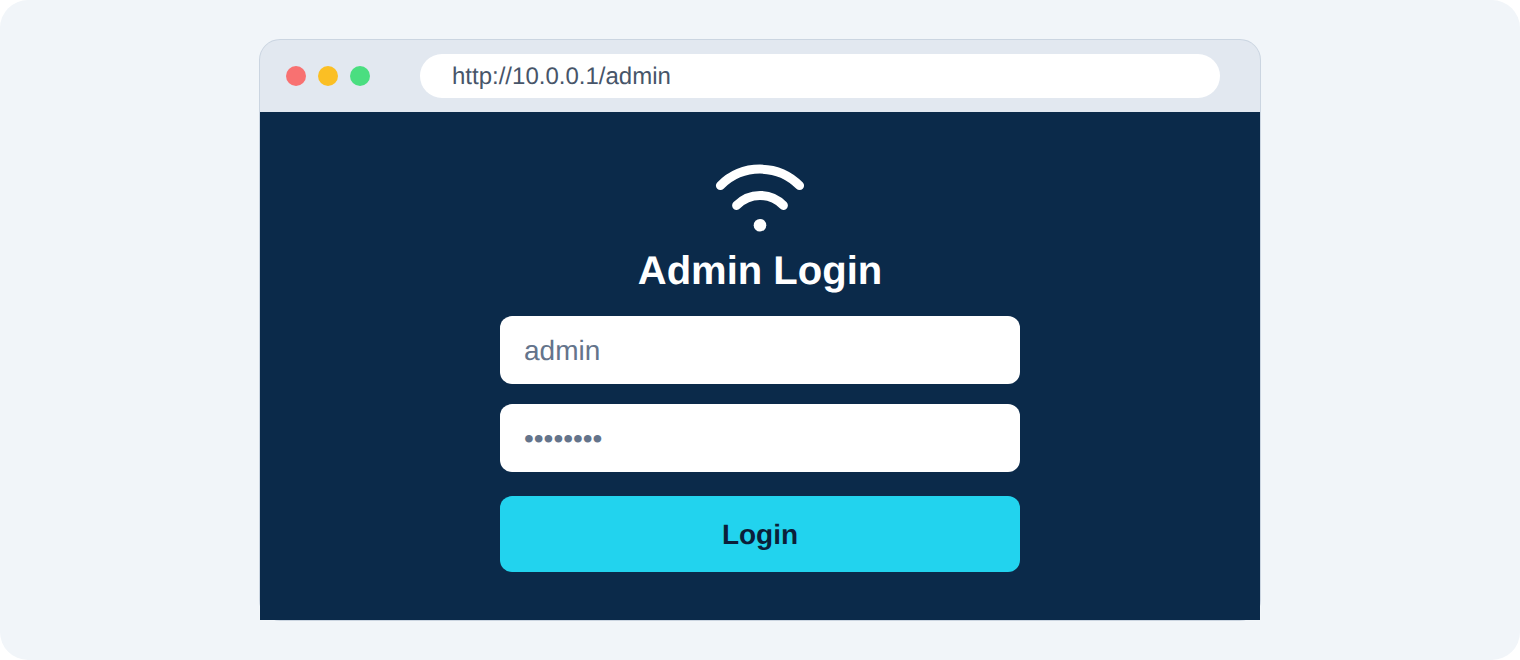
Open your browser and enter http://10.0.0.1/admin in the address bar.
Press Enter. The 10.0.0.1 login page appears.
Type your admin username and password.
Click Login to open the dashboard.
Depending on the system, you may also see a customer page at 10.0.0.1/client?page=dashboard or 10.0.0.1/portal.html. These pages show remaining time and are meant for users, not owners. Some systems also offer a session page at 10.0.0.1/status, and all of them belong to the customer-facing 10.0.0.1 portal. Owners should always use the /admin path.
Default Username and Password
Piso WiFi vendors often ship systems with simple factory credentials. The 10.0.0.1 admin password is often one of these combinations:
| Username | Password |
|---|---|
| admin | admin |
| admin | password |
Your installer may have changed them. Check the manual, the label on the device, or ask the person who set it up. Change the default password immediately after your first login.
10.0.0.1 Not Opening? Quick Fixes
When a 10.0.0.1 Piso WiFi portal does not load, the problem is almost always on the device, not the vending machine. Work through these fixes in order. If you are still stuck, review the complete Piso WiFi login guide from the beginning.
The Captive Portal Page Does Not Appear
Your phone may be hiding the "Sign in to network" notification. Forget the Piso WiFi network, reconnect, and pull down the notification shade. You can also open http://10.0.0.1 manually, or try a plain HTTP page such as neverssl.com to trigger the redirect.
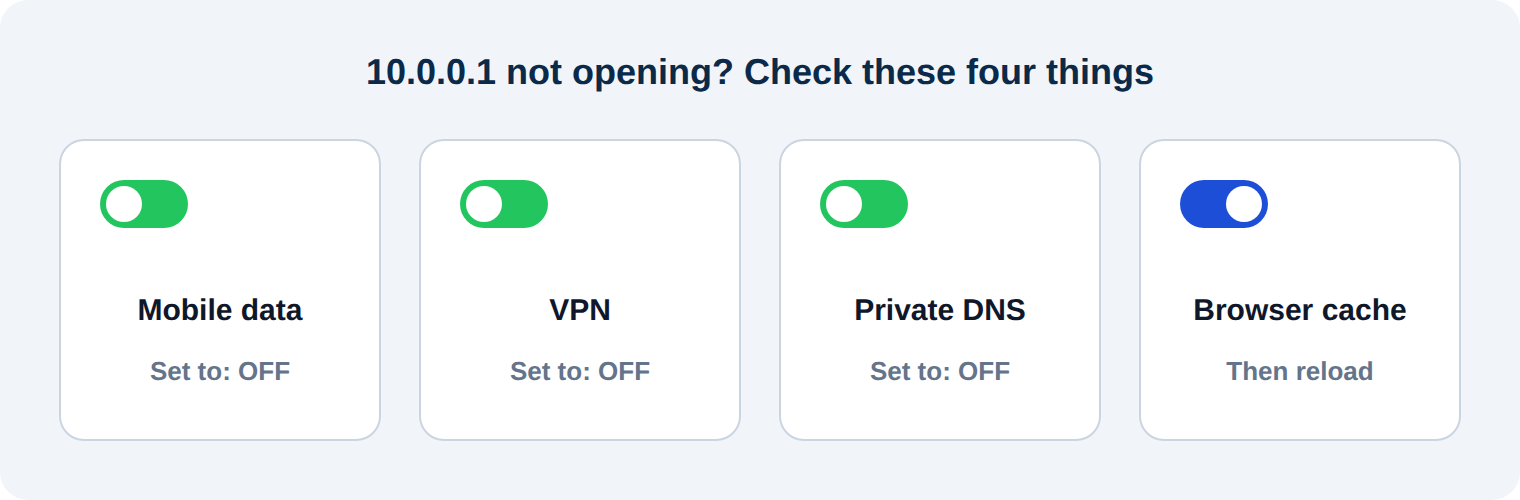
Turn Off Mobile Data, VPN, and Private DNS
Mobile data can override the WiFi connection, so switch it off while you log in. A VPN or Android's Private DNS setting can also block the portal redirect. Turn both off, finish payment, then switch them back on if you want extra privacy.
Clear the Cache or Switch Browsers
A stale cache can load an old portal page. Clear your browser data or open the address in a private window. If the problem continues, try a different browser.
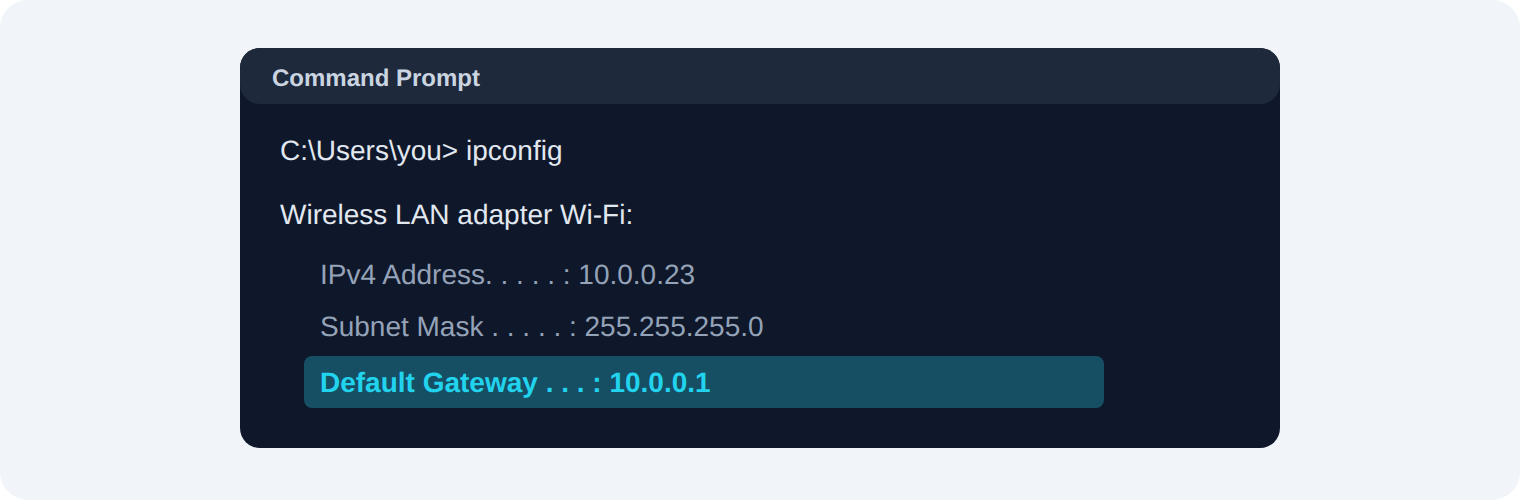
Find the Correct Gateway IP
Some Piso WiFi machines use a different address. Check your gateway:
Windows: open Command Prompt, run ipconfig, and read the Default Gateway.
Android: open WiFi settings, tap the connected network, and look for Gateway or Router.
iPhone: go to Settings, WiFi, tap the (i) icon, and read the Router field.
Mac: open System Settings, Network, WiFi, Details, then TCP/IP, and read Router.
Restart or Factory Reset
Power-cycle the vendo and your device. Use a factory reset only as a last resort, because it erases rates, vouchers, and sales records.
What Is the 10.0.0.1 Piso WiFi Pause Time Feature?
Pause time freezes your remaining internet minutes. You can step away, disconnect, and return later without losing the time you paid for. The owner decides whether pause time is enabled and how long a session can stay paused.
How to Use 10.0.0.1 Pause Time: Pause and Resume
Connect to the Piso WiFi network and open http://10.0.0.1 in your browser.
Tap the Pause button on the portal or client page.
Your session stops, and the remaining time is saved.
When you return, reconnect, open the portal again, and tap Resume.
Button names vary between systems such as Adopisoft and LPB, so look for similar labels.
Pause Time Not Working or Time Missing
If pause on your 10.0.0.1 Piso WiFi does not respond, or the Pause button is missing, the owner may have disabled it, or your system version may not support it. If your time disappeared, the paused session may have expired under the owner's limit.
If you inserted a coin but received no time, wait a few seconds for the vendo to register it. Do not keep adding coins. Contact the owner and describe what happened, because refund rules depend on the shop.
Piso WiFi Admin Settings You Can Manage
On a 10.0.0.1 Piso WiFi system, owners who log in at 10.0.0.1/admin can adjust the settings below. Menu names differ between versions, but the logic is the same.
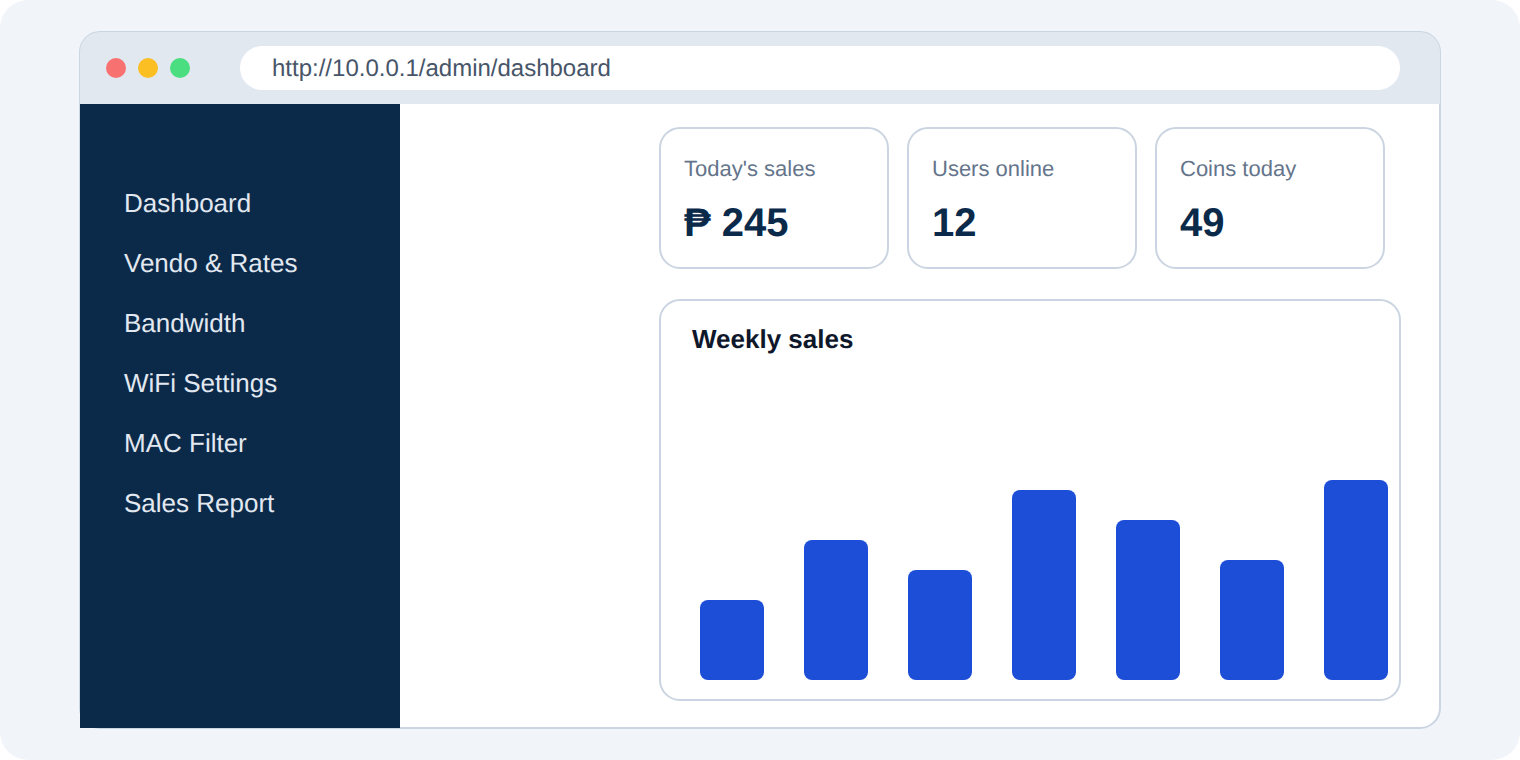
Vendo Setup and Coin Rates
In the vendo or rates section, you configure the coin slot and set how much time each coin buys. For example, you might assign 5 minutes to ₱1. Save the changes and test with a real coin before opening for customers.
Bandwidth Limits per User
A bandwidth limit stops one customer from using all your speed. Setting a download and upload cap per device keeps the connection fair, especially if your ISP plan is small. If pages fail to load after login, owners can also check the upstream DNS servers, for example 8.8.8.8 and 8.8.4.4.
Change the WiFi Name and Password
Go to the wireless settings, edit the SSID, and set a new WPA2 password if your access point uses one. Save, and expect connected devices to drop and reconnect.
Block Devices With MAC Filtering
Every device has a unique MAC address. If someone abuses the service, add their MAC address to the block list in the connected devices or access control section.
Vendo Systems Compared
| System | Typical Platform | Notes |
|---|---|---|
| Adopisoft | Orange Pi, Raspberry Pi, or PC | Widely used. Supports pause time and vouchers |
| LPB Piso WiFi | Vendor-built firmware | Uses 10.0.0.1 and the lpb.wifi portal shortcut |
| JuanFi | MikroTik router with a NodeMCU coin slot | Uses a separate hotspot login portal |
Features change with each version, so confirm details with your vendor's manual.
Forgot Your Admin Password? How to Reset
Start with the simple options. Check the sticker on the device and any manual from your supplier. Then ask the installer, who may know the credentials they configured.
If that fails, use your system's password reset method, which differs between Adopisoft builds, LPB firmware, and other vendors. A full factory reset wipes your rates, vouchers, and sales logs, so back up your configuration first if you still have access. After resetting, change the default password right away.
Security Tips for Your Admin Panel
An exposed admin page can cost you money, so protect your 10.0.0.1 Piso WiFi dashboard like a cash register.
Change the default password to a long, unique one.
Keep remote access off unless you truly need it, since 10.0.0.1 is meant for local use.
Update firmware and software when your vendor releases fixes.
Log in only from your own device and avoid saving the password on shared computers.
Advise customers to avoid banking and sensitive logins on any public hotspot, and to turn on a VPN after they connect.
Starting a Piso WiFi Business: What You Need
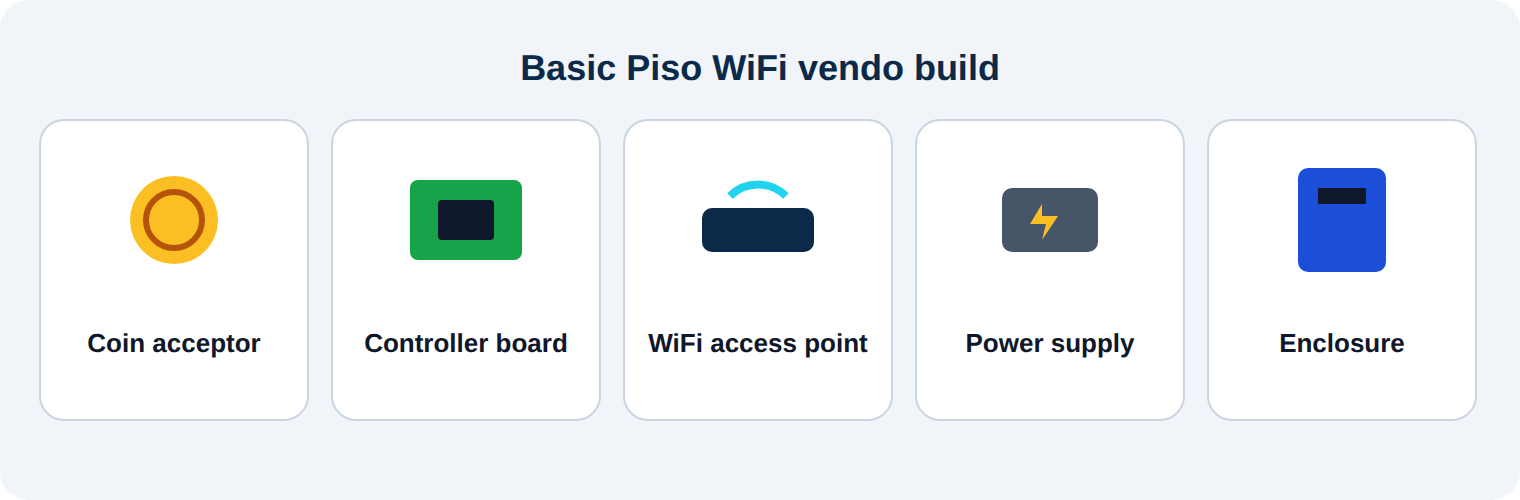
A basic build includes a coin acceptor, a controller board such as an Orange Pi or Raspberry Pi, a WiFi access point, a power supply, and a protective enclosure. You also need a reliable ISP plan with enough bandwidth for several users at once.
Choose a location with steady foot traffic, set fair rates, and track your daily coin collection. Earnings depend on your location, customer volume, and monthly internet cost, so avoid assuming guaranteed profit.
Frequently Asked Questions
What is 10.0.0.1 Piso WiFi?
It means a Piso WiFi vending system that uses 10.0.0.1 as its gateway address. Customers see the portal there, and owners open the admin panel there.
What is the default password for 10.0.0.1?
The most common defaults are admin/admin and admin/password. Check your manual, because installers often change them.
Is Piso WiFi safe to use?
It works like any public hotspot. Avoid banking, shopping, and sensitive logins, and use a VPN after you connect.
How does pause time work?
Pause time saves your unused minutes. You pause from the portal, and later you resume to continue where you stopped, subject to the owner's limit.
How much time does ₱1 give?
It depends on the owner. A common example is 5 minutes, but each shop sets its own rate.
Why is 10.0.0.1 not opening?
Usually mobile data, a VPN, Private DNS, or a cached page blocks the portal. Turn those off, use http, and confirm your gateway IP.
How do I add more internet time?
Insert more coins before your timer ends, or buy a voucher code if the shop offers one.
Final Thoughts
The 10.0.0.1 Piso WiFi address is the entry point to both the customer portal and the owner dashboard. Use http://10.0.0.1 to buy, pause, and resume time, and use 10.0.0.1/admin to manage rates, devices, and security. Fix connection problems by turning off mobile data, VPN, and Private DNS, and always replace the default password. With those basics in place, your Piso WiFi setup will run smoothly.